| FTP Button Settings
|


|
|
| Clicking the Custom 1 or Custom 2 icon on the left pane in the Button Configuration window displays its current button settings on the right pane. Selecting FTP Utility from Button Template drop-down list in the Button Configuration window turns the Custom button into a FTP button.
|
|
|
| The settings can be categorized into two: Session Name and File Saving Settings on the upper part, and Scan Parameters on the lower part.
|
|
|
| The items and parameters available in the window are explained as follows:
|
|
|

|
|
|
| Session Name and File Saving Settings
|
|
|
|
|
|
| Session Name
|
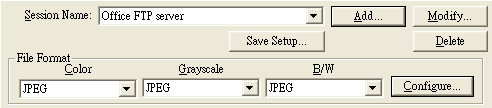
| List the Session Name you have added in the FTP Connection Properties dialog box. You may select the desired FTP session from the drop-down list.
|
|
|
| More than one FTP session can be added to the drop-down list.
|
| · | Clicking  opens the "FTP Connection Properties" window where you may add frequently-used FTP sessions to the list. opens the "FTP Connection Properties" window where you may add frequently-used FTP sessions to the list.
|
| · | Clicking  opens the "FTP Connection Properties" window where you may modify the FTP settings for the current FTP session. opens the "FTP Connection Properties" window where you may modify the FTP settings for the current FTP session.
|
| · | Clicking  to delete the current FTP session from the list. to delete the current FTP session from the list.
|
|
|
|
|
| Save Setup...
|
| Clicking this button opens the Save Setup dialog box where you may determine where and in what file name formats the scanned documents or images are saved.
|
|
|
|
|
| File Format
|
| Determines the image file format to save the scanned documents or images to. The following file format are available from the drop-down list box:
|
| · | JPEG: Not available for B/W scan mode.
|
| · | TIFF - Uncompressed
|
| · | TIFF - Compressed
|
| · | PDF
|
| · | PNG
|
| · | Windows Bitmap
|
|
|
|
|
| Different file formats can be set for different scan modes. For example, if you usually need color images in JPEG and B/W images in BMP, you may configure so here. Next time when you scan a document in color first and then another document in B/W, you may simply change the scan parameters without the trouble of changing file formats frequently.
|
|
|
Clicking  opens the File Format Configuration window where you may configure advanced settings for JPG, TIFF - Compressed and PDF file formats. opens the File Format Configuration window where you may configure advanced settings for JPG, TIFF - Compressed and PDF file formats.
|
|
|
|
|
|
|
| Scan Parameters
|
| · | Scan Type
|
| · | Split
|
| · | Page Size
|
| · | Scan Mode
|
| · | Document Type
|
| · | Resolution
|
| · | Brightness
|
| · | Contrast
|
| · | Gamma
|
| · | Threshold
|
| · | Color Dropout
|
| · | Descreen
|
| · | Filter
|
| · | Page Settings
|
| · | Continuous Scan
|
| · | Apply Color Matching
|
| · | Auto Density
|
| · | Auto Crop
|
| · | Multi-Crop (This function may or may not be available depending on the scanner model you purchase.)
|
| · | Auto Deskew
|
| · | Image Edge Fill
|
| · | Multi-image output (This function may or may not be available depending on the scanner model you purchase.)
|
| · | Remove Punch Holes (This function may or may not be available depending on the scanner model you purchase.)
|
| · | Remove Background
|
| · | Denoise
|
| · | Character Enhancement
|
| · | Global Settings
|
| · | Preview
|
| · | Default
|
|
|
| Also see:
|
 How do I configure the FTP button? How do I configure the FTP button?
|